
A QR gallery for your guests’ photos and videos
While you’re listening to a toast, someone at the next table catches a moment you’ll want to keep. One QR code gives everyone a place to share those photos and videos.

 Open the gallery
How guests add their photos
Open the guest page
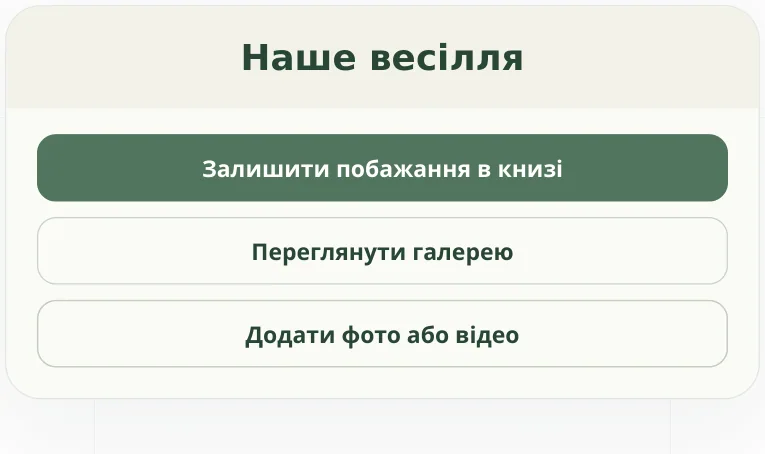
Scan the QR sign with a phone camera or tap the link in a message. The guest menu opens in the browser.
Share a photo or video
Choose the upload option, select the files and send them. There’s a separate guestbook option for personal messages.
Browse the album
Open the gallery to see other guests’ photos. If moderation is on, an upload appears after you approve it.
Make the album yours
Enable the gallery in your event settings. Add a cover, your logo and colours. A photographer can include their contact details in the header.
Choose whether guests can share videos, show their names, like photos or download files. Save, open QR signs and scan your sign with a second phone before printing.
Open the step-by-step guide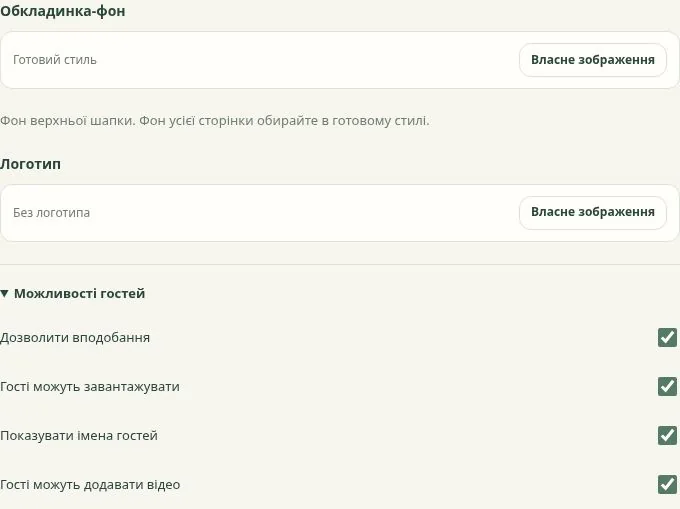
Common questions
Do guests need an account or app?
Guests use the link in their phone browser. If you’ve set a password, share it with them.
Do I need a second QR code?
The main code opens the guest menu. You can also create a gallery-only link or code for people who just want to browse.
Can the host show a video on a projector?
Open the gallery on the connected computer, choose the video and press play. Use the photo wall for an automatic slideshow.
How do I keep the originals?
Open Archive in your dashboard and download the ZIP. Guests can download individual files when you allow downloads.